Review agents
A review agent is a specialist reviewer: a model call with its own instructions, focused on one kind of problem, such as security or database migrations. In Agents review mode, Gryndel sends each part of a change to the agents suited to it, then combines and checks what they find. This page explains how that works, when it's worth it, and how to tune, add and measure agents.
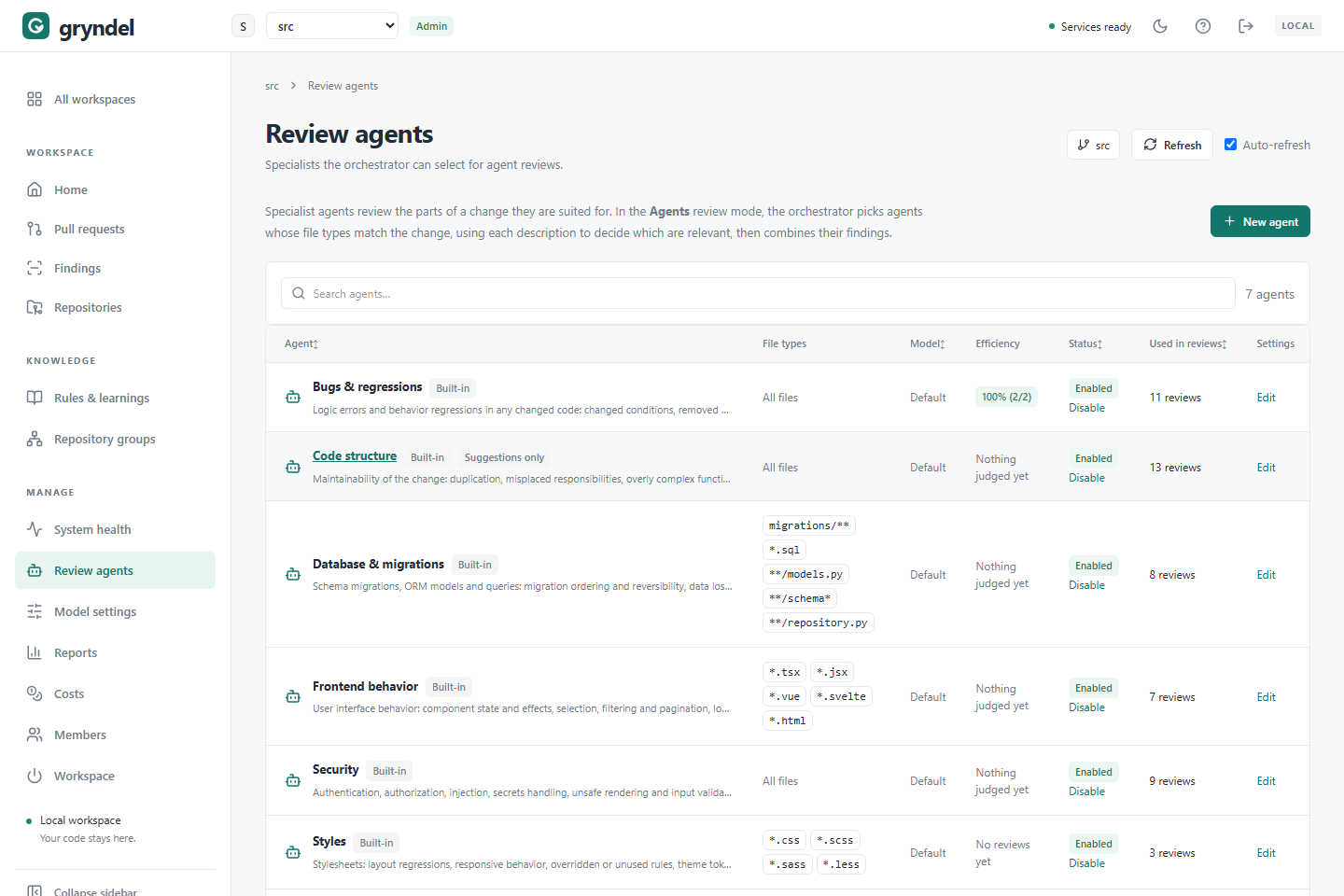
Open the page
In the sidebar, under MANAGE, click Review agents.
Everyone in the workspace can see the page. Only workspace admins can change agents; viewers see Viewers cannot change agents. and can open an agent with View.
Agents are only used by repositories whose Review mode is Agents · specialist reviewers. You set that per repository in Repositories, under Configure, on the Reviews tab, or for many repositories at once in Organization settings. Single pass and Verified modes don't use agents.
How an agents review works
When a commit is reviewed in Agents mode:
- Route. Each agent gets the changed files that match its File types. Agents with no matching files don't run and cost nothing. Only agents that are enabled here, and allowed by the repository's Review agents setting, take part.
- Select. If more than one agent has files, a coordinating model call, the orchestrator, reads the title of the merge request (GitLab) or pull request (GitHub), the list of changed files, and each agent's name, Description and files. It picks the agents whose specialty fits the change, and rates the change's risk. It doesn't see the code. If only one agent has files, it runs without this step. If the orchestrator fails or picks nobody, every matching agent runs.
- Review. The chosen agents review their own files at the same time, each on its own provider and model if you set one. A large set of files is split into parts that fit the model, one call per part. Each agent also receives the rules that match its files.
- Combine. The orchestrator groups findings that describe the same problem, so it's posted once, and keeps the names of every agent that found it.
- Verify. Every finding labelled as an issue (a real defect) is checked by an independent verification step against the code. Confirmed issues are posted; rejected ones go to Withheld in the review details. Suggestions, nitpicks and questions aren't verified; the repository's Comment level caps how many are posted.
- Post. Each comment shows its label and severity, and ends with a Found by line naming the agents. Gryndel's summary comment lists the agents that ran, for example Agents: Bugs & regressions, Security (2 of 7).
The orchestrator and verification steps run on your workspace's default provider and model, set in Model settings.
If an agent fails every attempt, the others still finish, but the review is marked partial: the summary says which agent didn't complete, and the commit status fails so the review never looks clean. If no agent can run at all, the review fails and can be replayed.
When agents mode is worth it
Verified is the default review mode and the right choice for most repositories. Switch a repository to Agents when one of these applies:
| Situation | Why agents help |
|---|---|
| Merge or pull requests are often large | Each agent gets a budget for its own files, and files are split into parts that fit the model, so large changes are reviewed fully instead of failing or skipping files. |
| Changes mix kinds of code, such as API, migrations and frontend in one merge or pull request | Each specialty gets focused instructions and only the files it knows about. |
| You want suggestions and questions, not just bugs | Only Agents mode posts suggestions, nitpicks and questions, controlled by Comment level. |
| You want different models for different jobs | For example a strong model for Security and a cheaper one for Styles. |
| You have a team specialty that deserves its own reviewer | Add your own agent, such as one for your payments code. |
Stay on Verified when merge or pull requests are small and of one kind, or when you want the most predictable cost. Agents mode makes one call per chosen agent (more for large changes), plus a few small coordinating calls, so a change that matches many agents usually costs more than a Verified review. Compare on the Costs page, and see Control costs.
The built-in agents
Every workspace starts with seven built-in agents. Their ID is what you write in a
.gryndel.yaml file's agents: list.
| Agent | ID | File types | Looks for |
|---|---|---|---|
| Bugs & regressions | bugs | All files | Logic errors and behaviour regressions: changed conditions, removed guards, edge cases, error handling. |
| Security | security | All files | Authentication, authorization, injection, secrets, unsafe rendering and input validation. |
| Database & migrations | database | migrations/**, *.sql, **/models.py, **/schema*, **/repository.py | Migration order and reversibility, data loss, constraints, indexes, locking and queries. |
| Types & contracts | contracts | *.py, *.ts, *.tsx, *.js, *.jsx, *.go, *.java, *.rs | Whether changed code still agrees with its callers: signatures, API shapes and types. |
| Frontend behavior | frontend | *.tsx, *.jsx, *.vue, *.svelte, *.html | Component state and effects, selection, filtering and pagination, loading, empty and error states, accessibility. |
| Styles | styles | *.css, *.scss, *.sass, *.less | Layout regressions, responsive behaviour, overridden rules, theme tokens and contrast. |
| Code structure | structure | All files | Duplication, misplaced responsibilities, overly complex functions. Suggestions only. |
You can edit, disable and restore built-in agents, but not delete them. Note that the
built-in Database & migrations pattern migrations/** only matches a migrations
folder at the top of the repository; if yours is deeper, add **/migrations/**.
The agent list
| Column | What it shows |
|---|---|
| Agent | Name and description. Badges: Built-in, and Suggestions only for agents that can't raise blocking issues. |
| File types | The extensions or patterns it reviews, or All files. |
| Model | The provider and model it runs on, or Default for the workspace's default. |
| Efficiency | How many of its judged findings, on its current model, were valid. See Efficiency. |
| Status | Enabled, Disabled, or Inactive: provider disabled. Admins also see Disable or Enable. |
| Used in reviews | How many reviews the orchestrator chose it for. |
| Settings | Edit or View. |
Search agents filters by name, description, file types, model, or "enabled" and "disabled".
Inactive: provider disabled means the agent is enabled but set to a provider that is disabled in Model settings. Reviews skip it until you enable the provider or choose another one for the agent.
Choose agents for a repository
By default, every enabled agent can review every repository in Agents mode. There are two ways to narrow that:
| To… | Do this |
|---|---|
| Stop an agent everywhere | Click Disable in its row here. Its settings and scores are kept. |
| Limit one repository to some agents | In Repositories, Configure the repository, and on the Reviews tab tick the agents under Review agents. |
| Limit it from the repository itself | Add agents: [bugs, security] under reviews: in its .gryndel.yaml. See How settings combine. |
The orchestrator still decides, per merge or pull request, which of the allowed agents fit. Limiting agents is about cost and relevance: an agent that never applies to a repository only adds calls.
Edit an agent
Before you start: you need to be a workspace admin.
- Click the agent's name or Edit. A side panel titled REVIEW AGENT opens.
- Change the fields you need (see below).
- Click Save agent.
Changes apply to reviews that start after you save. A review already queued keeps the agents it started with. If you close the panel with unsaved changes, Gryndel asks before discarding them.
| Field | What it does | Limit |
|---|---|---|
| Name | Shown in the list, the summary comment and Found by lines. | 60 characters |
| Description | What the orchestrator reads to decide whether the agent fits a change. | 500 characters |
| File types | Which changed files the agent sees. Blank means every file. | 30 patterns |
| Provider | Default provider, or another provider from Model settings. | |
| Model | Provider default follows the provider when its default model changes; or pick a specific model. | |
| Prompt | What this agent looks for, on any model without its own prompt. | 4,000 characters |
| Enabled for agent reviews | Untick to stop using the agent everywhere. | |
| May raise blocking issues (otherwise its findings are posted as suggestions) | Untick for agents whose findings should never block a merge or pull request. |
Write the description
The orchestrator chooses agents from their descriptions, without seeing the code. So say what kinds of change the agent is for, in words that match file names and merge or pull request titles.
| Weak | Better |
|---|---|
| "Checks payments." | "Payment and billing code: charges, refunds, currency rounding, idempotency keys and webhook handling from the payment provider." |
| "Infrastructure." | "Terraform and Kubernetes manifests: resource limits, public exposure of services, secrets in configuration, and destructive changes to stateful resources." |
If an agent is never chosen although its files change, its description is probably too narrow or vague. If it's chosen for everything, it's too broad.
Set the file types
File types takes a comma-separated list. Each item is an extension or a pattern:
| You type | It matches |
|---|---|
tsx or .tsx | Every .tsx file, in any folder. Gryndel stores it as *.tsx. |
*.test.ts (no /) | Files with that name pattern, in any folder |
migrations/** (with /) | Everything under migrations/ at the top of the repository |
**/migrations/** | Everything under any folder named migrations |
A pattern without / is matched against the file name only; a pattern with / against the
whole path from the top of the repository. Patterns are case-sensitive. A renamed file
matches if either its old or new path does.
Narrow file types are the cheapest way to tune an agent: files it doesn't see cost nothing
and can't produce wrong findings. But too narrow, and the agent misses the change that
matters. For example, a payments agent limited to payments/** won't see a bug introduced
in the shared money.py it depends on.
Write the prompt
The prompt is the agent's specialty: what to look for and how to judge it. Gryndel adds its own shared instructions automatically (the Specialist agents prompt in a repository's Prompts tab, and fixed rules for labels, line anchors and evidence), so you don't need to repeat them.
- Name the problems to look for, concretely. "Missing tenant filter on a query" beats "data access issues".
- Say what isn't a problem, if the agent keeps reporting it.
- Say which label to use. Agents label findings issue, suggestion, nitpick or question. Only issues can block a merge or pull request. The built-in agents end with "Use label issue only for a concrete defect with a triggering scenario.", which is worth keeping.
- Keep it short. One specialty per agent. If a prompt covers two topics, make two agents.
Example, for a custom payments agent:
Review payment code for defects that charge customers wrongly: amounts computed in floating
point instead of integer minor units, rounding that differs between the charge and the
receipt, retries without an idempotency key, refunds that can exceed the original charge,
and webhook handlers that trust the payload without verifying its signature. Do not report
naming or formatting. Use label issue only for a concrete defect with a triggering scenario.
After changing a prompt, watch its Efficiency on the next reviews (see Efficiency).
Choose a provider and model
Leave Provider on Default provider and Model on Provider default unless you have a reason. Reasons to set them:
- A specialty where accuracy matters most, such as Security, on your strongest model.
- High-volume, low-stakes agents, such as Styles or Code structure, on a cheaper or faster model.
A provider shown as (disabled: this agent will be skipped) can't be chosen; enable it in Model settings first.
Blocking or suggestions only
Untick May raise blocking issues for agents whose findings are advice, not defects, such as Code structure. Their findings are then always posted as suggestions, nitpicks or questions, never as issues, so they never fail the commit status. How many are posted depends on the repository's Comment level; at Whisper, none are.
Add your own agent
When: your team has a specialty the built-in agents don't cover well, such as payments, infrastructure as code, or a domain with its own rules. For a single check, a rule is simpler; make an agent when the specialty needs its own reviewer.
- Click New agent.
- Fill in Name, Description, File types and Prompt, as above. A clear Description matters most, because the orchestrator uses it to choose agents.
- Click Create agent.
The new agent is enabled at once, and repositories with no Review agents ticked start
using it. Its ID, for .gryndel.yaml, is its name in lowercase with hyphens, for
example payments for "Payments". A workspace can have up to 50 agents.
Check it worked: open a test merge or pull request that changes a file the agent should see. In the summary comment, the Agents: line should name it, and its Used in reviews count goes up. If the orchestrator didn't choose it, the review's details show which agents ran and why. See Pull requests.
Delete one of your own agents with Delete in its panel, then confirm. This can't be undone; to stop using it for a while, Disable it instead.
Efficiency
Efficiency tells you whether an agent's findings hold up. For the model the agent runs on now, since its score was last reset:
valid findings ÷ (valid findings + invalid findings)
- Valid: posted to the merge or pull request, or confirmed by verification.
- Invalid: rejected by verification, or pointing at a line or file that doesn't exist.
Findings dropped for other reasons, such as duplicates of another agent's finding, the comment level cap, or the repository's minimum severity, aren't counted either way.
The badge shows, for example, 72% (18/25). Hover over it for the number of reviews. Until something is judged it says Nothing judged yet or No reviews yet.
An agent under 50% after at least five judged findings is flagged check prompt: more than half of what it reports is wrong on this model.
Act on a low score
- Open a few recent reviews where the agent ran, on Pull requests, and look at the Withheld tab. The reason for each rejection tells you what's going wrong. See Findings, Withheld and Verification.
- Pick the fix that matches what you see:
| What you see | Likely cause | Fix |
|---|---|---|
| Findings about things outside the agent's specialty | Prompt too broad | Narrow the Prompt to the problems you want. |
| Findings in files the agent shouldn't review | File types too broad | Narrow File types. |
| The same kind of false alarm again and again | The model misreads a pattern in your code | Add "Do not report …" to the prompt, with the reason. |
| Rejected for pointing at a line or file that doesn't exist | The model is weak at citing lines | Try a stronger model for this agent, or a prompt for that model. |
| Style opinions labelled as issues | Labels not followed | Tell it which label to use, or untick May raise blocking issues. |
- Save the change. The agent starts a fresh score on that model (see below), so you can compare the new prompt with the old one after a few reviews.
A high score with very few findings may simply mean the agent rarely has anything to say. Use Used in reviews together with the score.
A different prompt for each model
Models respond to instructions differently. A prompt that works on one model can be too vague, or too strict, on another. An agent can keep a separate prompt for a specific model, used instead of its main Prompt whenever it runs on that model.
When: you run the same agents on more than one model (for example you switched the default provider, or set some agents to another model), and one model scores much lower.
The panel's Prompts and scores by model section lists every model the agent has run on, plus its current model, marked current. Each shows its score, since when, and whether it uses its own prompt or the default prompt.
- Find the model in the list.
- Tick Use its own prompt on this model. A text box opens, filled with the main prompt.
- Edit the prompt and click Save agent.
Untick the box, and save, to go back to the main prompt on that model. An agent can have its own prompt for up to 20 models.
Fresh scores, reset and restore
Each model has its own score. Saving a changed prompt for a model, or changing the main prompt that a model uses, closes the old score and starts a fresh one for that model. The old prompt and score are kept, so you can compare them.
- Reset score starts a fresh score for that model without changing the prompt. Use it after a fix that isn't a prompt edit, such as narrowing File types, so old results don't drag the new score down.
- Earlier prompts and scores lists the last three versions, with their dates and scores.
- Restore this prompt brings an earlier version back for that model. It starts a fresh score too.
Reset and restore take effect at once. If you have unsaved edits in the panel, Gryndel asks before discarding them.
Restore a built-in agent
When: you've edited a built-in agent and it now does worse than the original, or you want to start again from Gryndel's version.
- Open the built-in agent.
- Click Restore default and confirm.
This brings back the original Name, Description, File types, Prompt and the blocking setting, and removes any per-model prompts. It keeps the agent's Provider, Model and whether it's enabled. Models whose prompt changed start a fresh score.
If something goes wrong
| Problem | Cause | Fix |
|---|---|---|
| Reviews fail with "No review agents are enabled for this repository" | Every agent the repository allows is disabled, or agents: in its .gryndel.yaml lists only unknown IDs. | Enable an agent here, or change the repository's Review agents or its file. |
| The summary says "No enabled agent matches the changed file types." | No agent's File types match any changed file. | Give an agent broader file types. The built-in Bugs & regressions sees every file unless you changed it. |
| An agent never runs | Its file types don't match, the orchestrator never picks it, the repository doesn't allow it, or its provider is disabled. | Check each in that order. |
| "This agent changed elsewhere. Reload and try again." | Another admin saved the agent after you opened it. | Reload the page and make your change again. |
| "The orchestrator could not select agents, so every matching agent ran." | The selection call failed. | Nothing to do; the review ran with all matching agents. If it happens often, check the default model in Model settings. |
| A review says an agent "did not complete" | The agent's calls failed every attempt, often a provider timeout or rate limit. | Check the provider in Model settings, then replay the review. |