System health
The System health page tells you whether Gryndel can reach the two things every review needs: your code host (GitLab, and GitHub when your Gryndel is connected to it) and your model providers. Check it first when reviews don't start, keep failing, or the top bar turns amber. Everyone in the workspace can open it. Fixing a problem usually needs a workspace admin, or your Gryndel operator.
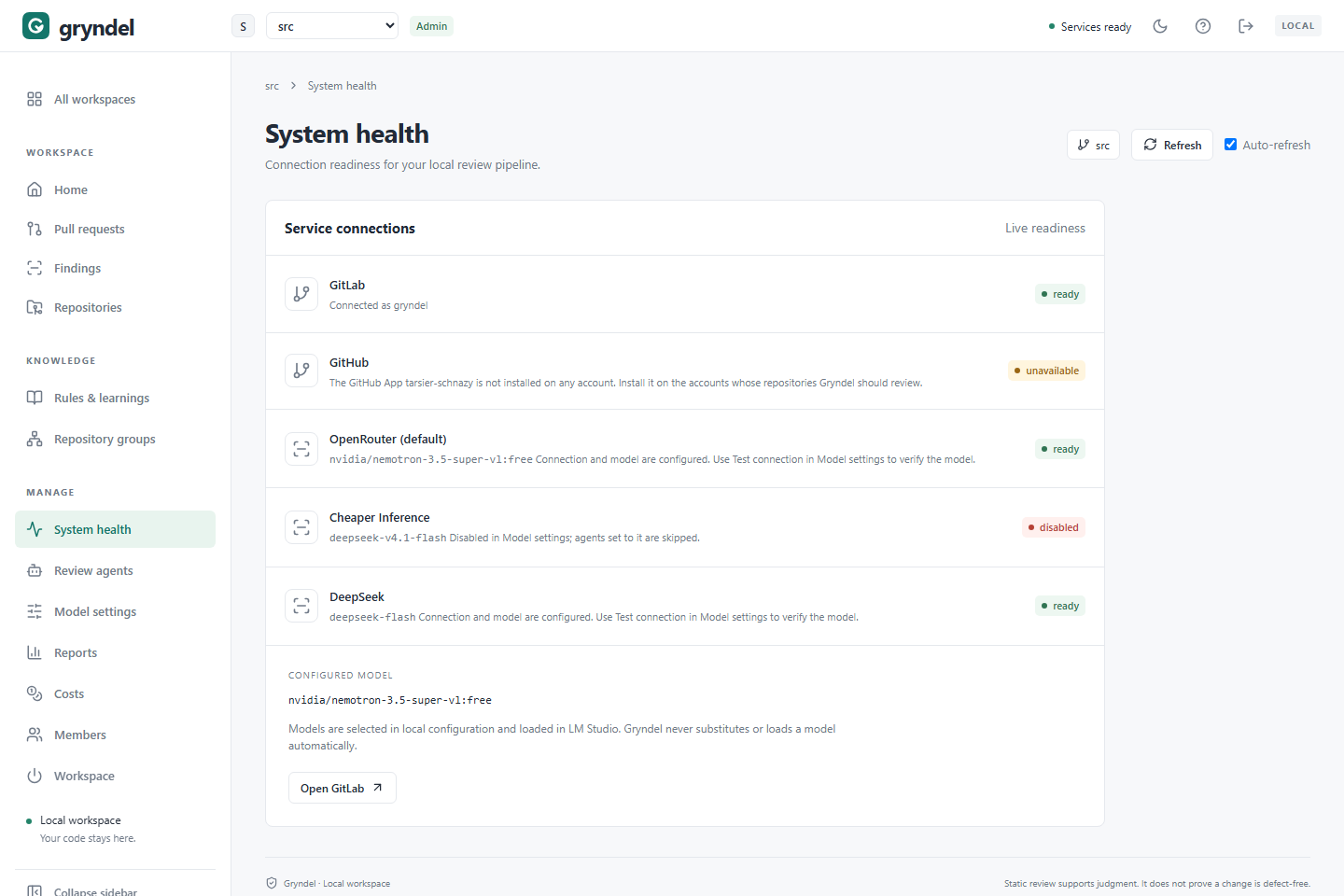
Open the page
In the sidebar, under MANAGE, click System health. Or click the services status in the top bar:
| Top bar | Meaning |
|---|---|
| Green dot, Services ready | The workspace's code host and the default model provider look fine. |
| Amber dot, Needs attention | The code host or the default provider has a problem. |
| Amber dot, Status unknown | Gryndel couldn't run the checks at all. |
| Checking services | The first check is still running. |
The top bar only reflects the current workspace's code host (GitLab in a GitLab workspace, GitHub in a GitHub workspace) and the default provider. A problem with another provider, for example one only some review agents use, or with the other code host, shows on this page but leaves the top bar green.
What the page shows
The Service connections panel has one row per service, each with a name, a short message and a status badge.
- GitLab: the GitLab server Gryndel reviews merge requests on. When it works, the message says Connected as and the account Gryndel uses.
- GitHub: only when your Gryndel is connected to a GitHub App. When it works, the message says Connected as the GitHub App name, installed on n accounts.
- One row per model provider: the provider's name, (default) for the one reviews use unless told otherwise, and the model it's set to use.
Below the rows, CONFIGURED MODEL shows the default provider's model. Gryndel never switches to a different model on its own. Open GitLab (in a GitHub workspace, Open GitHub) opens the code host in a new tab.
The checks run again every 10 seconds while Auto-refresh is ticked. Click Refresh to check straight away, for example right after fixing something.
Status reference
| Badge | Meaning | What to do |
|---|---|---|
ready | The service is set up. For GitLab, Gryndel reached it with its token. For GitHub, GitHub accepted Gryndel's App and the App is installed on at least one account. For most providers, it means an API key (where one is needed) and a model are saved; Gryndel doesn't call the provider from this page. | Nothing. To prove a provider really answers, use Test connection in Model settings. |
unavailable | Gryndel can't reach the service, or it isn't set up. The message says which. | See When a badge isn't ready. |
not loaded | The provider is running, but the model Gryndel is set to use isn't loaded (LM Studio providers only). | Load that model in the provider, then replay reviews that failed. |
model unavailable | A review or learn found that the provider no longer offers the chosen model. Every review that uses it fails. | Choose another model in Model settings, then replay the failed reviews. |
key rejected | The provider refused the API key. Every review that uses it fails. | Save a valid key in Model settings, then replay the failed reviews. |
disabled | The provider is turned off in Model settings. Review agents set to use it are skipped. | Nothing, if you meant it. Otherwise turn it back on in Model settings. |
simulator | Gryndel is running in test mode with a fake code host or a fake model. No real reviews happen. | Tell your Gryndel operator; this shouldn't happen on a live server. |
unknown | Gryndel couldn't check. The message says Readiness is unknown. Try refreshing. | Click Refresh. If it stays, see step 1 below. |
When a badge isn't ready
Work through these steps in order. Stop when the badge turns ready.
1. Make sure Gryndel itself is answering
If every row says unknown, or the page shows Service readiness is unknown, the problem
is Gryndel, not the code host or the model.
Reload the page. If it persists, contact your Gryndel operator with the time and the message.
2. Read the row's message
The message usually names the problem. Match it below.
3. Fix the code host
Fix GitLab
The GitLab row says GitLab or an enrolled project is unavailable. Check service and token access. when any of these is true:
| Cause | How to check | Fix |
|---|---|---|
| GitLab is down or unreachable | Click Open GitLab. Does it load? | Ask your GitLab administrators. |
| Gryndel's GitLab token expired or was revoked | GitLab loads, but the row stays unavailable. | Ask your Gryndel operator to renew Gryndel's GitLab token. |
| An enrolled project was deleted, moved, or Gryndel lost access to it | Open the project in GitLab and check that Gryndel is still a member with Developer access. | Restore its access, or turn off reviews for that repository in Repositories. |
Fix GitHub
The GitHub row shows one of these messages when it's unavailable:
| Message | Cause | Fix |
|---|---|---|
| GitHub did not accept Gryndel's App, or could not be reached. Check the App ID and private key, and the egress service. | GitHub is down or unreachable from Gryndel, or it refused the App's ID or private key, for example because the key was deleted on GitHub. | Ask your Gryndel operator; the App's settings are on the Gryndel server. |
| The GitHub App name is not installed on any account. | The App was never installed, or every account uninstalled it. | An account owner installs it on GitHub, choosing the repositories to review. |
A ready GitHub row doesn't mean GitHub can deliver events to Gryndel. If pull requests
aren't reviewed even though the row is ready, check the App's recent deliveries on
GitHub (the App's settings, Advanced tab), where a failed delivery can be sent again
with Redeliver.
4. Fix a model provider
| Badge and message | Fix |
|---|---|
unavailable, Save a … API key and model in Model settings. | Open Model settings, edit the provider, save a key and a model, then Test connection. |
unavailable, the provider is unreachable (LM Studio providers only) | Start the provider's server, and check the address in Model settings. The address must be reachable from the Gryndel server, not just from your computer. |
not loaded (LM Studio providers only) | Load the exact model shown on the row, then Refresh. |
model unavailable | Choose another model in Model settings and click Test connection. |
key rejected | Save a new key in Model settings and click Test connection. |
model unavailable and key rejected clear once a call through that provider succeeds, a
Test connection of the model succeeds, or you choose a different model. Until then, a red
banner on every page names the provider and says when the last call failed.
5. Check it worked
- Click Refresh. Every row you need should say
ready, and the top bar Services ready. - For a model provider, run Test connection in Model settings. A
readybadge alone doesn't prove the model answers.
6. Replay what failed while it was down
Go to Pull requests, set All statuses to failed, and replay the newest
failed review of each merge or pull request. See
Replay a failed review. Reviews still queued carry on by
themselves.
If you're still stuck, see Troubleshooting.
A green page means Gryndel can reach the code host and the model. It doesn't prove a review will succeed: the code host must still send Gryndel the merge or pull request's events, and the model must give usable answers. To check the whole path, open a merge or pull request in an enabled repository and watch it on Pull requests. See Your first review.