Home
Home is the first page you see when you open Gryndel at https://app.gryndel.com/. Its title is Workspace overview. In under a minute it tells you whether Gryndel is working, whether any review needs you, and what was reviewed recently. Everyone in the workspace sees the same page; only admins can act on some of what it shows.
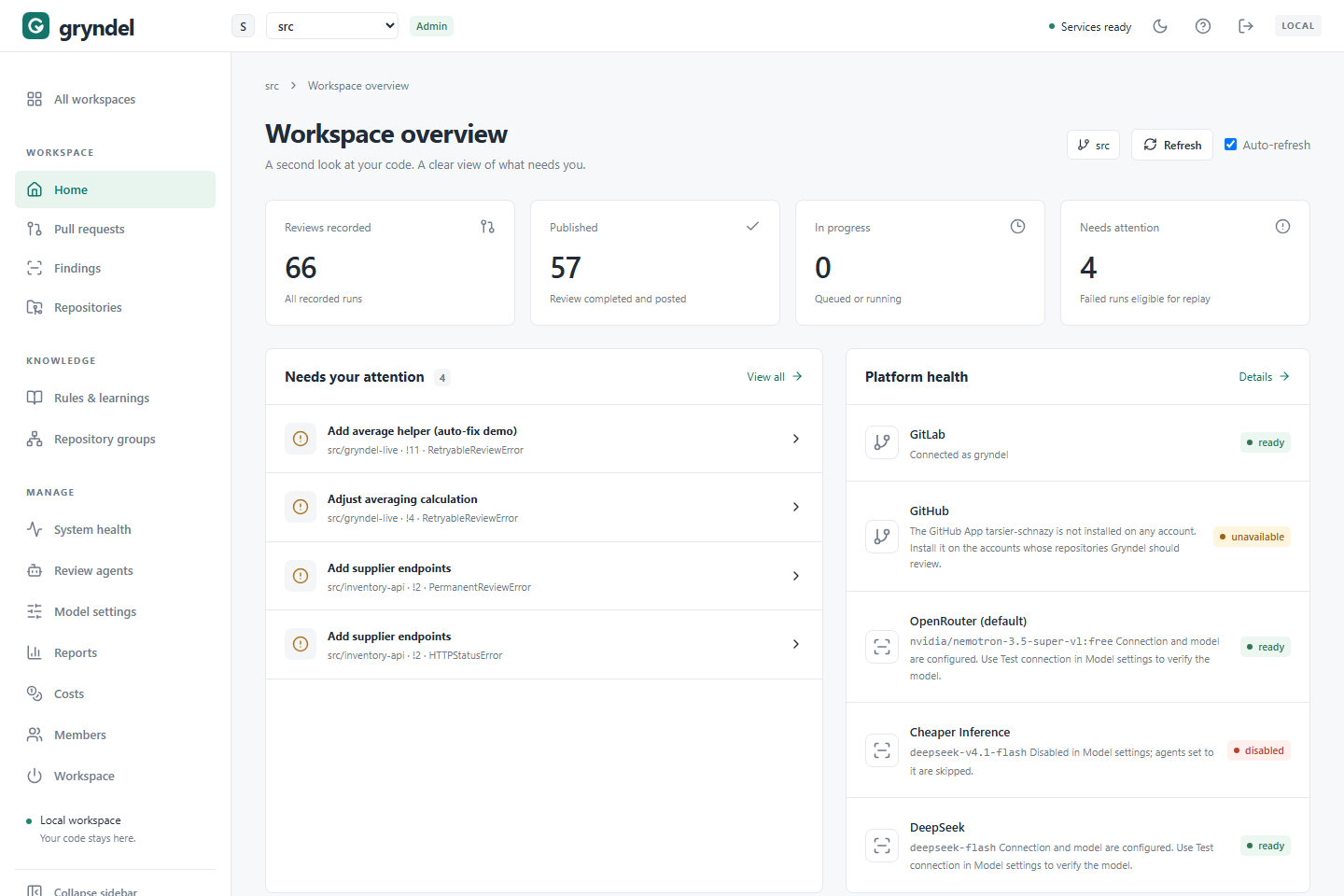
Your daily check
Once a day, or whenever something seems off, look at these in order:
- The services status in the top bar. Green Services ready is good. Amber Needs attention or Status unknown means the workspace's code host (GitLab or GitHub) or your default model provider has a problem, and new reviews may fail. Click it to open System health.
- Any banner at the top of the page. Each one is a problem that affects every review. See Messages at the top of the page.
- Needs your attention. Failed reviews. Open each one and decide whether to replay it. See Clear the failed reviews.
- In progress. A number that stays high for a long time means reviews are piling up.
- Recent reviews. Open any you're curious about.
If all of that is green and empty, Gryndel is doing its job and you're done.
The top bar
The bar across the top is on every page:
| Item | What it's for |
|---|---|
| Workspace menu | Switch workspace. A workspace is a GitLab group with its subgroups and projects, or a GitHub account (an organisation or a personal account) that has Gryndel's App installed. The menu lists the workspaces on the code host you signed in with. New workspace… creates one for a group you own or maintain, or a GitHub account you own. See Members. |
| Admin or Viewer | Your role in this workspace. Admins can change settings and replay reviews; viewers can see everything. Hover over it to see your access level on the code host, such as GitLab: Maintainer or GitHub: Owner. |
| Services status | Services ready, Needs attention, Status unknown or Checking services. Click it for System health. |
| Moon or sun button | Switch between the dark and light theme. |
| Question-mark button | A short Welcome to Gryndel help box. |
| Door button | Sign out. |
Under the page title are the workspace's GitLab group path or GitHub account name, Refresh, and Auto-refresh. With Auto-refresh ticked, Gryndel reloads the page's data every 10 seconds while the browser tab is visible. Your choice is remembered in this browser.
Summary cards
| Card | What it counts | Look out for |
|---|---|---|
| Reviews recorded | Every review run in this workspace. A new commit on a merge request (GitLab) or pull request (GitHub) gets a new run. | Nothing; it only grows. |
| Published | Runs that finished and were posted to the code host. | It should rise as merge or pull requests are updated. |
| In progress | Runs waiting for a worker or running now. | A number that stays high, or grows, for a long time. |
| Needs attention | Failed runs. | Anything above zero. |
Clear the failed reviews
The Needs your attention panel lists up to five failed reviews, newest first. Each row
shows the merge or pull request title, the repository, its number (such as !12 on GitLab
or #12 on GitHub) and a short failure code. When nothing has failed it says You're all caught up.
For each row:
-
Click it. The review details open, with a red Review failed: box saying what went wrong.
-
Decide what to do:
The details say What to do A newer commit on this merge request has its own review… (or pull request) Nothing. The newer commit was reviewed separately; this failure is history. The model, the API key or the code host was the problem Fix it (start at System health), then click Replay failed run. The change was too large for the model Ask the author to split it, or add Excluded paths on Repositories, then comment @gryndel review.Gryndel hit an internal error Replay once. If it fails again, report it. -
Click View all to see every failed review on Pull requests, already filtered to
failed.
Only workspace admins can replay. If you're a viewer, ask an admin, or comment
@gryndel review on the merge or pull request. See
Replay a failed review.
A failed run stays failed even after a newer commit has been reviewed, so it keeps
appearing here and in the Needs attention count. When the newest review of that merge
or pull request is fine, you can ignore it.
Platform health
The same connection checks as System health: one row for GitLab, one for GitHub
when your Gryndel is connected to it, and one for each model provider, each with a status badge. Anything other than ready (or disabled, for a
provider you turned off on purpose) needs a look. Click Details to open the full page.
Recent reviews
The six newest review runs, with the same columns as the Pull requests list. Click a title or the arrow at the end of a row to open its details. Click All reviews for the full history.
Learned repositories
Gryndel can learn a repository: it reads the code and proposes a short description of how
the repository is organised (a profile), as a merge or pull request. Once that is
merged, reviews follow it, which helps the model understand your code. The count, such as
2 of 5, is how many of your repositories have been learned.
| Column | What it shows |
|---|---|
| Repository | The repository's path. · reviews off means reviews aren't turned on for it. |
| Last learned | When Gryndel last learned it, or Not learned. |
| Profile | A link to the profile merge or pull request, Already on the default branch, or a badge: Learning queued, Learning… or Last learn failed. |
What to do:
- Not learned on a busy repository: an admin can learn it from Repositories (Configure, then Profile).
- Merge request !N (or Pull request #N): the profile is waiting to be merged. Until someone reviews and merges it, reviews don't use it.
- Last learn failed: usually the model; check System health, then try again from Repositories.
Use the search box to find a repository. Repositories opens the Repositories page.
Messages at the top of the page
| Message | What it means | What to do |
|---|---|---|
| Your review model is not loaded | The default provider is running but the model Gryndel is set to use isn't loaded (LM Studio providers only). New reviews can't run. | Load that model in the provider, or ask whoever runs it. Then replay reviews that failed. |
| A review service needs attention | The workspace's code host or the default model provider can't be reached, or isn't set up. | Click View status and follow When a badge isn't ready. |
| Your review model is no longer available | The provider no longer offers the chosen model. Every review that uses it fails. | Click Model settings and choose another model. Then replay the failed reviews. |
| Your model provider refused Gryndel's API key | The API key was rejected. Every review that uses it fails. | Click Model settings and save a valid key. Then replay the failed reviews. |
| Reviews are turned off in … | An admin turned reviews off for this workspace. Merge or pull requests are told to contact a workspace admin. | Click Manage to see the Workspace page. |
| Gryndel is turned off for every workspace | Gryndel was switched off for everyone. Nothing is reviewed. | Contact your Gryndel administrator. |
| Review history could not be refreshed | Gryndel couldn't load new data. What you see is the last data it received. | Click Retry. If it keeps happening, Gryndel itself may be down. |
| Service readiness is unknown | Gryndel couldn't check the code host and the model. Review history still works. | Click Retry, then check System health. |
| You are a viewer in … | You can see everything but not change settings or replay reviews. | Ask a workspace admin if you need more. See Members. |
The model banners appear on every page (except Model settings) until the problem is fixed, and say when the last call failed.