Members and roles
The Members page shows who can use the current workspace and what each person can do in Gryndel. You come here to check someone's access, to make someone an admin or a viewer, or to find out why a colleague can't change a setting. This page also covers signing in and out, switching between workspaces and creating a new one.
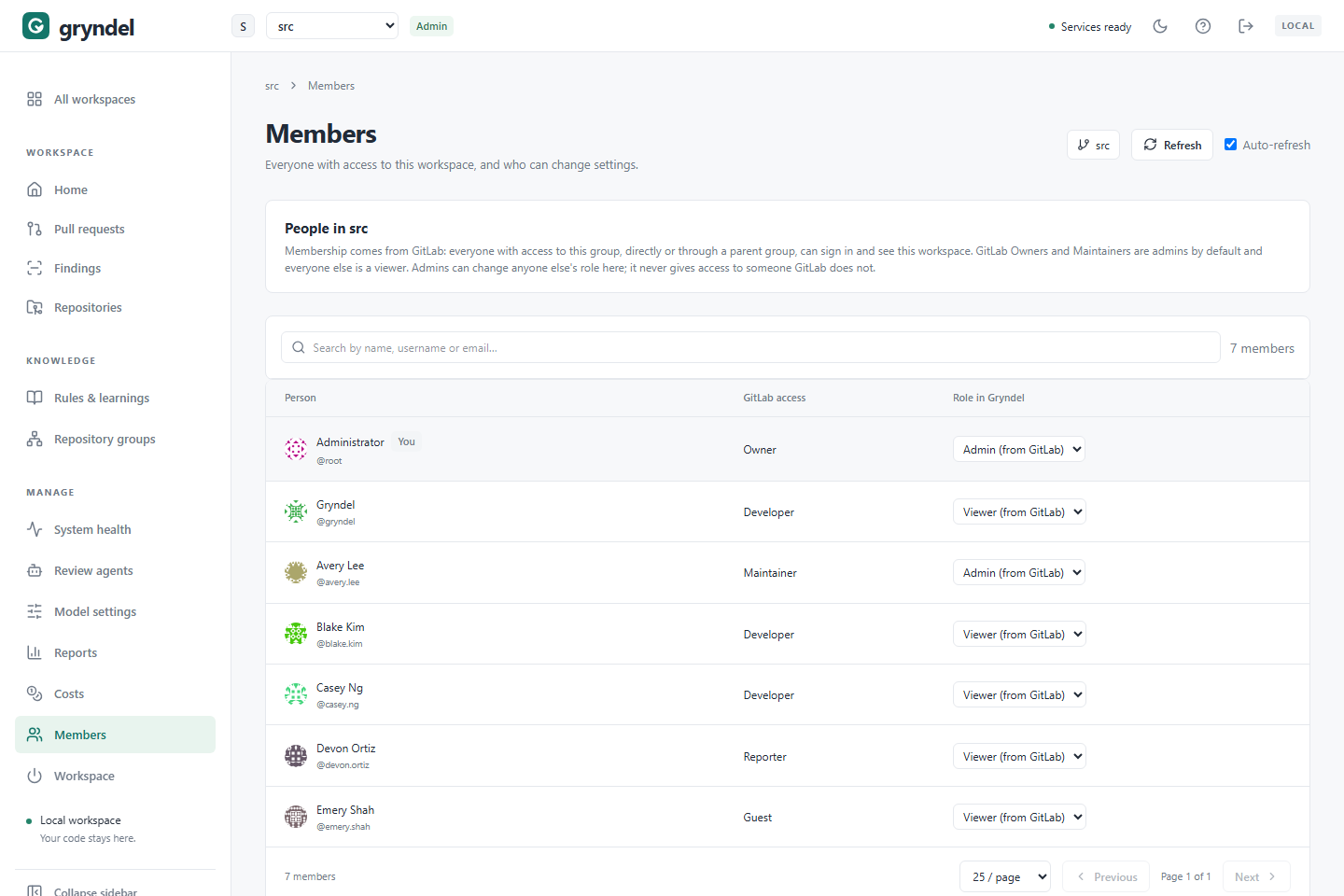
In the sidebar, under MANAGE, click Members. Everyone in the workspace can see the list. Only workspace admins can change roles.
Workspaces are GitLab groups or GitHub accounts
A workspace is where Gryndel keeps everything for one team or organisation: its repositories, review settings, rules, review agents, model providers and API keys, prices, costs and review history. Nothing is shared between workspaces unless an admin copies it (see Workspace).
Each workspace belongs to one code host:
| Code host | A workspace is | Overlaps |
|---|---|---|
| GitLab | One root GitLab group (a top-level folder of projects on your GitLab server), with all its subgroups and projects. Its reviewer account's token decides which group. | A subgroup can't be a workspace of its own, so workspaces never nest or overlap. |
| GitHub | One GitHub account that has Gryndel's GitHub App installed: an organisation, or a personal account. It covers the repositories the App can see on that account. | Accounts don't nest, so there's nothing to overlap. |
A GitLab group and a GitHub account with the same name, such as acme, are two separate
workspaces. You can belong to several workspaces, with a different role in each.
How people get access, and lose it
Nobody is invited to Gryndel. Membership comes straight from the code host, and a role in Gryndel never gives anyone access the code host doesn't.
- GitLab
- GitHub
Everyone who has access to the workspace's group in GitLab, directly or through a parent group or a group the group is shared with, is a member. Any GitLab access level counts, including Guest. Blocked GitLab users aren't listed.
| To do this | Do this in GitLab |
|---|---|
| Give someone access | Add them to the group (or a parent group). They can sign in to Gryndel straight away. |
| Remove someone's access | Remove them from the group. They lose access to the workspace within about a minute, even if they're signed in. |
| Give someone access to one project only | Not possible. Gryndel access is per group, not per project. |
For an organisation, its members are members of the workspace. For a personal account, its owner is; other people who can see the App's installation, for example collaborators on its repositories, can open the workspace as viewers.
| To do this | Do this on GitHub |
|---|---|
| Give someone access | Add them to the organisation. They can sign in to Gryndel with GitHub straight away. |
| Remove someone's access | Remove them from the organisation. They lose access to the workspace within about a minute, even if they're signed in. |
| Give someone access to one repository only | Not possible. Gryndel access is per account, not per repository. |
Admins and viewers
There are two roles in each workspace.
| Viewer | Admin | |
|---|---|---|
| See every page: reviews, findings, reports, costs, rules, settings | Yes | Yes |
| Turn repositories' reviews on or off, pause them, and change their settings | No | Yes. Turning reviews on or off also needs Maintainer or Owner on the project in GitLab, or the Maintain or Admin role on the repository in GitHub |
| Add or change rules, review agents, model providers and prices | No | Yes |
| Replay or cancel a review in Gryndel | No | Yes |
| Change other people's roles | No | Yes |
| Turn the workspace's reviews off, copy settings in, or delete the workspace | No | Yes |
Use @gryndel commands on merge or pull requests | Depends on the code host, not on the Gryndel role | Same |
Viewers see a note at the top of each page: You are a viewer in workspace. Buttons that change things are hidden or greyed out for them.
@gryndel commands on a merge request (GitLab) or pull request (GitHub), such as
@gryndel review, depend only on the person's access to the repository, never on their
role in Gryndel: the Developer role or higher in the GitLab project, or write access
to the GitHub repository. A Gryndel viewer with that access can use every command. See
Commands.
Which role people get
By default the role follows the person's access on the code host:
| Code host access | Default Gryndel role |
|---|---|
| GitLab Owner or Maintainer in the group | Admin |
| GitLab Developer, Reporter, Guest and lower | Viewer |
| GitHub Owner: an organisation's owner, or the owner of a personal account | Admin |
| GitHub Member of an organisation, or Collaborator on a personal account | Viewer |
An admin can override that for anyone except themselves. Your role in the current
workspace shows as a badge (Admin or Viewer) next to the workspace name at the
top of the page. Hover over it to see your access level, such as GitLab: Maintainer or
GitHub: Owner.
Gryndel tells an organisation's owners from its members through the Members organisation permission of its GitHub App. If the App doesn't have it, everyone, owners included, is a viewer, the member list can't load, and nobody can create the organisation's workspace. Ask whoever set up the App to give it Members: Read-only under Organization permissions; the organisation's owners then accept the new permission on GitHub.
When to promote or demote someone
| Situation | Recommendation |
|---|---|
| A team lead is a GitLab Developer or a GitHub organisation member, but should manage rules and review settings | Make them Admin. They still can't turn a repository's reviews on or off unless they're a Maintainer or Owner of it (Maintain or Admin on GitHub). |
| A GitLab Maintainer or a GitHub organisation owner shouldn't change Gryndel's settings, for example a contractor | Make them Viewer. |
| Someone's access level changed and their Gryndel role should follow it again | Choose Admin (from GitLab) or Viewer (from GitLab) (from GitHub in a GitHub workspace). |
| You're the only admin and want to step down | Make someone else an admin first. You can't change your own role. |
A role you set by hand sticks. If you make a Developer an admin and they later become a Maintainer, or the other way round, the role you chose stays until an admin resets it to the "from GitLab" (or "from GitHub") option. Removing someone from the group or organisation still removes their access at once.
The member list
| Column | What it shows |
|---|---|
| Person | Name and username. Your own row has a You badge. |
| GitLab access (GitHub access) | Their access level. On GitLab, the level in the group, such as Developer or Maintainer, including access inherited from a parent group. On GitHub, Owner or Member. |
| Role in Gryndel | Their role, as a menu. It reads Admin (from GitLab) or Viewer (from GitLab) (or from GitHub) while the role follows the code host, or Admin or Viewer when an admin chose it. |
Choose how many people to show per page under the list. Searching works differently on each host:
- GitLab: type in Search by name, username or email. GitLab does the search, so it works for large groups too.
- GitHub: type in Search by name or username. Gryndel searches only the page of members on screen, so page through a large organisation, or show more people per page.
The list shows an organisation's members. For a personal account it shows only the owner. Other people who can open the workspace, such as collaborators, aren't listed and keep the viewer role.
Change someone's role
Before you start: you need to be an admin of the workspace.
- Find the person with the search box.
- In their Role in Gryndel menu, choose:
- Admin or Viewer to set the role yourself, or
- Admin (from GitLab) or Viewer (from GitLab) (or from GitHub) to let the role follow their access level again.
The change is saved at once and applies the next time that person loads a page. There's no Save button.
Your own menu is greyed out, with the hint Ask another admin to change your role. This stops the last admin locking everyone out by accident.
Sign in and sign out
Every page needs you to sign in with your GitLab or GitHub account. Gryndel has no passwords of its own.
A sign-in belongs to one code host. Signed in with GitLab, you see only GitLab workspaces; signed in with GitHub, only GitHub workspaces. To switch, sign out and sign in with the other one. Gryndel never links a GitLab account to a GitHub account.
- GitLab
- GitHub
- Open Gryndel at https://app.gryndel.com/. The page says Sign in to Gryndel.
- Click Sign in with GitLab.
- Sign in on GitLab if asked, and click to allow Gryndel to read your account.
- You come back to Gryndel, in the workspace you used last in this browser.
Signing in only lets Gryndel read your GitLab account and which groups you belong to.
- Open Gryndel at https://app.gryndel.com/. The page says Sign in to Gryndel.
- Click Sign in with GitHub. The button is only there when your Gryndel is connected to a GitHub App with sign-in set up; if it's missing, ask your Gryndel operator.
- Sign in on GitHub if asked, and authorise Gryndel's App.
- You come back to Gryndel, in the workspace you used last in this browser.
Gryndel reads your GitHub account and the accounts where its App is installed that you belong to. It never changes anything on GitHub as you.
The extra GitLab permission
This is GitLab only. Turning a repository's reviews on or off, or deleting a workspace, changes webhooks in GitLab (the setting that tells GitLab to notify Gryndel about merge requests). Gryndel makes that change as you, with your GitLab permissions, so it needs one more permission from you:
- The first time you do one of those actions after signing in, Gryndel sends you to GitLab.
- Allow the access GitLab asks for. You come back to the same page.
- Do the action again. It works from now on, until you sign out.
If you click to deny it in GitLab, Gryndel says You did not allow Gryndel to change GitLab as you, so nothing was changed.
GitHub workspaces never ask for this: the GitHub App's own webhook covers its repositories, so there are no webhooks to change as you.
Sign out
Click the sign-out icon at the top right of any page. Model settings also has a Sign out button. Signing out ends your Gryndel session in this browser and withdraws the extra GitLab webhook permission, if you gave it.
With GitLab, your session lasts 30 days (or what your administrator set): Gryndel renews GitLab's sign-in as it expires, every two hours by default, without asking you. It ends sooner if you sign out, or if GitLab stops accepting the renewal, for example after you revoke Gryndel under your GitLab profile's Applications. With GitHub, the session ends when GitHub's sign-in expires, after about eight hours. Gryndel then shows Sign in to Gryndel again; sign in and carry on. Sessions started before this release still end with their first GitLab sign-in; sign in once more to get one that renews.
Switch workspaces
- At the top of the page, open the Workspace menu next to the Gryndel logo.
- Choose another workspace.
The whole app switches: every page now shows that workspace's data, and your role badge changes to your role there. Gryndel remembers your choice in this browser. The menu lists only workspaces on the code host you signed in with.
To compare all your workspaces side by side, use All workspaces.
Create a new workspace
When: a team wants Gryndel on its own GitLab group or GitHub account, with its own settings, rules, model providers and costs. On GitLab, if the group is inside one that already has a workspace, use that workspace instead: workspaces can't overlap.
- GitLab
- GitHub
Before you start:
- Sign in with GitLab.
- You need to be an Owner or Maintainer of the root GitLab group (a top-level
group, such as
company, notcompany/payments). A workspace always covers a whole root group; a subgroup can't have one. - A reviewer account in that root group: a user made for Gryndel, or a group access token
made in the root group itself, with the
apiscope and at least the Developer role. Its token decides the workspace's group and which repositories Gryndel sees. Where your Gryndel allows it, you can use Gryndel's shared account instead, which must be a Developer of the root group.
How:
- Open the Workspace menu and choose New workspace…. If you have no workspace yet, click Create a workspace instead.
- Paste the reviewer token and click Check token.
- Gryndel lists the root groups the token reaches where you're an Owner or Maintainer and that have no workspace yet. With one, it's already selected; otherwise select one. (With the shared account, search your root groups instead.)
- Click Create workspace.
Before you start:
- Sign in with GitHub.
- Gryndel's GitHub App must be installed on the account, with the repositories you want reviewed. See Prepare your GitHub account.
- You need to be the account's owner: an owner of the organisation, or the personal account itself.
How:
- Open the Workspace menu and choose New workspace…. If you have no workspace yet, click Create a workspace instead.
- The list shows the accounts where the App is installed, you're an owner, and there's no workspace yet. Type in Search your GitHub accounts to narrow it.
- Select the account.
- Click Create workspace.
What happens next: Gryndel switches to the new workspace. Its members are the group's or organisation's members, with roles from their access levels. It starts empty, so:
- Add a model provider in Model settings, or copy one from another workspace on the Workspace page.
- Turn on reviews for repositories on the Repositories page.
If creating a workspace fails
| Message or symptom | Cause | Fix |
|---|---|---|
| Your GitLab group isn't in the list | The token doesn't reach it, you aren't an Owner or Maintainer of it, or a workspace already covers it or a group inside it | Check the token's group and role. If a message says the group is covered, use that workspace. |
| This workspace can't be created at subgroup**. It must be created at the root group** root**.** | GitLab only. The token (often a group access token) was made in a subgroup, or you pasted a subgroup's path | Make the token in the root group, or add its user to the root group as a Developer, then check it again. |
| Add the Gryndel service account … as a Developer first | GitLab only. The service account isn't in the group, or has less than Developer access | Add it in GitLab under the group's Manage → Members, then try again. |
| Only the group's Owners and Maintainers can create its workspace. | GitLab only. Your access to the group is lower | Ask an Owner or Maintainer to create it. |
| No GitHub account with Gryndel's App installed where you are an owner and no workspace yet. | The App isn't installed on the account, you aren't an owner of it, the App lacks the Members permission (organisations), or the account already has a workspace | Install the App on the account, or ask an organisation owner to create the workspace. If the workspace exists, pick it from the Workspace menu. |
| Install Gryndel's GitHub App on account first. Only the account's owners can create its workspace. | The App was uninstalled meanwhile, or you aren't an owner | As above. |
| group already has a workspace. | Someone created it already | Pick it from the Workspace menu. If it's not there, you're not a member of the group or organisation. |
Troubleshooting access
| Problem | Likely cause | Fix |
|---|---|---|
| No workspace yet after signing in | None of your GitLab groups or GitHub accounts has a Gryndel workspace on the host you signed in with, or you aren't a member yet | Ask to be added to the group or organisation, create a workspace for one you own, or sign out and sign in with the other code host. |
| A workspace is missing from the Workspace menu | You signed in with the other code host, or you aren't in its group or organisation | Sign out and sign in with the right host, or ask to be added on the code host. |
| You have no access to the GitLab group path (or GitHub account name) | You were removed while you were signed in | Reload the page and pick another workspace, or ask to be added back. |
| You're a viewer but should be an admin | Your access is below GitLab Maintainer or GitHub organisation owner, an admin set you to Viewer, or (GitHub) the App lacks the Members permission | Ask an admin to choose Admin for you on this page. |
| GitHub did not list the organization's members. | GitHub only. The App lacks the Members organisation permission | See the note under Which role people get. |
| Someone still has access after being removed | The change takes up to about a minute | Wait a minute, then ask them to reload. |
| Only workspace admins can change this. You can view it. | You're a viewer | Ask an admin to make the change, or to make you an admin. |
| You need Maintainer or Owner access to project in GitLab to turn its reviews on or off. (GitHub: the Maintain or Admin role) | You're a Gryndel admin but your own role on that repository is lower | Ask someone who is both to turn its reviews on or off, or ask for that role on the code host. |
| GitLab is signed in as someone else | Another GitLab account is signed in in this browser | Sign out of GitLab, sign in as yourself, and repeat the action. |
| Sign in with GitHub again to continue. or Your Gryndel session ended. Sign in again. | Your session expired | Sign in again and repeat the action. |
For sign-in errors, also see Troubleshooting.