Model settings
The Model settings page is where you connect Gryndel to the AI models that review your code. A provider is a service or server that runs models, such as OpenAI, Anthropic, OpenRouter, AWS Bedrock or a model server you run yourself. This page explains how to choose a provider and a model, how to combine several providers, how to tune token budgets and instructions, how to price models, and how to recover when a model or key stops working.
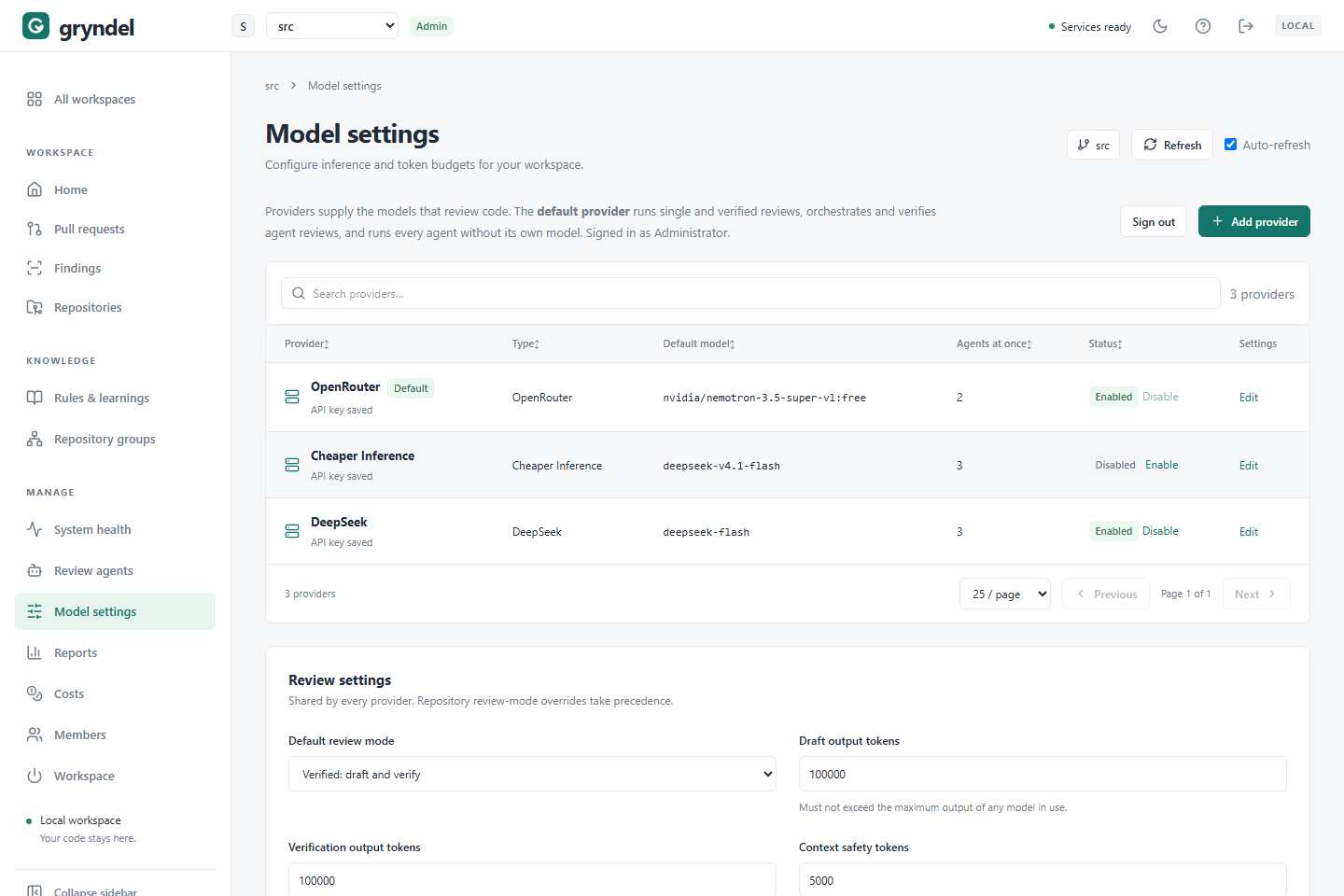
Open the page
In the sidebar, under MANAGE, click Model settings. The page also says who you are signed in as, and has a Sign out button. It works the same in GitLab and GitHub workspaces; if your session has ended, it offers Sign in with GitLab (or Sign in with GitHub) for the workspace's code host.
Settings belong to the workspace, not to you: every repository in the workspace uses the same providers. Everyone in the workspace can see this page, with API keys hidden. Only workspace admins can change it, test a connection or load a provider's model list; for viewers every control is greyed out.
The page has two parts:
- The provider list: the providers Gryndel can call, one of them the default.
- Review settings: token budgets shared by every provider.
Choose a provider and a model
Gryndel doesn't include a model. You connect at least one, and the quality of the model decides most of the quality of the reviews. Judge a provider and a model on these points:
| Criterion | Why it matters | What to look for |
|---|---|---|
| Structured output or tool calls | Gryndel needs every answer in a fixed format. A model that supports neither can't review. | The model's documentation lists "tool calling", "function calling" or "structured output / JSON schema". |
| Context window | The context window is how much text the model reads at once, counted in tokens (a token is a few characters). The changed code, instructions and answer must all fit. | 128,000 tokens or more for the default settings. 32,000 works if you narrow what a review reads (see Context window problems). |
| Good at code | Stronger coding models find more real bugs and raise fewer false alarms. | Coding benchmarks, and your own trial on a few real merge requests (GitLab) or pull requests (GitHub). |
| Where your code goes | Every review sends the code under review (source files and diffs, with secrets redacted) to the provider. | A provider's cloud is governed by its data retention and training policy. A server you run (LM Studio, Ollama, vLLM or another OpenAI-compatible server) keeps the code on your own machines. |
| Price | You pay per token: what Gryndel sends (input) and what the model writes (output). | Price per million input and output tokens. Agent and verified reviews make many calls, so input price matters most. |
| Rate limits | Providers limit requests per minute. Agent reviews send several calls at once. | Paid tiers have higher limits. Free models have the tightest ones. |
A practical start: pick a strong coding model with tool calls and a window of 128,000 tokens or more, from a provider whose data policy your organisation accepts. Run it on a handful of merge or pull requests, look at the findings and the Costs page, then decide whether a cheaper model is good enough for some of the work (see Use several providers).
For more help choosing, see Connect a model.
With a provider's cloud service, the code under review leaves your network. With OpenRouter it also goes to the model vendor OpenRouter routes the request to. Check the provider's data retention and training policy before you use it on private code.
Free models
Some providers offer free models. In the Default model list they're marked free. They're
fine for trying Gryndel out, but expect:
- tight rate limits, and refusals when several calls arrive at once (set Agents at once to 1);
- more errors and cut-off answers (Gryndel retries, which makes reviews slower);
- some OpenRouter
:freemodels are only served to OpenRouter's partner apps. They pass Test connection but fail in a review withmodel_restricted. Pick another model if that happens.
Don't rely on a free model for reviews your team depends on.
Provider types
You can add up to twenty providers, of these types:
| Type | What it needs | Notes |
|---|---|---|
| OpenRouter | API key | Many vendors' models behind one key. Its list hides models without structured output or tool calls, and shows prices. |
| OpenAI | API key | Doesn't always report context windows: fill in Context window (tokens). |
| Anthropic | API key | |
| Google Gemini | API key | |
| AWS Bedrock | Bedrock API key and AWS region | Use the region where your model access is enabled, such as us-east-1. Test connection checks the key but can't confirm the model. Fill in Context window (tokens). |
| Groq | API key | |
| Together AI | API key | Its list shows prices. |
| DeepSeek | API key | Fill in Context window (tokens). |
| Mistral | API key | |
| Cheaper Inference | API key (starts with ci_live_) | A discounted marketplace of several vendors' models. Its list shows prices. |
| OpenAI-compatible | Base URL, and an API key if the server needs one | Any server with an OpenAI-style /chat/completions endpoint: vLLM, Ollama, Fireworks, DeepInfra, xAI and similar. Fill in Context window (tokens) if the server doesn't report it. |
| LM Studio | LM Studio URL | No key. With no model chosen it uses the single model loaded in LM Studio. Starts at 1 agent at once. |
The hint under the API key field says where to get a key for each vendor.
For a server you run yourself (LM Studio, Ollama, vLLM and so on), enter its address as the Gryndel server sees it, not as your laptop does. Ask your Gryndel operator whether the server can reach it.
Add a provider
Before you start: you need to be a workspace admin, and have the provider's API key or the server's address.
- Click Add provider. A side panel titled MODEL PROVIDER opens.
- Choose a Type. You can't change the type later; to switch, add a new provider.
- Give it a Name you'll recognise in lists, such as "OpenAI (prod key)".
- Fill in the connection: API key, Base URL, LM Studio URL or AWS region, depending on the type (see Provider types). Keys are stored encrypted and never shown again.
- Choose a Default model (see Pick the model).
- Set Agents at once (see Agents at once and rate limits).
- If the type needs it, fill in Context window (tokens).
- Click Test connection and wait for the result (see What Test connection proves).
- Optional: open Prices per model and enter the model's price (see Prices).
- To make it the default, tick Default provider.
- Click Add provider.
What happens next
- A new provider that isn't the default does nothing until something uses it: make it the default, or choose it for an agent on Review agents.
- Changes apply to reviews and commands that start after you save. Gryndel reads these settings when each review attempt starts, so a review that is already queued but not yet running uses the new settings.
Pick the model
The Default model list is loaded from the provider. Each entry may note whether it's
free, whether it's loaded (LM Studio), and its context window, for example
(free, 128k context). Under the list, Gryndel says how many models it found and when the
list was loaded. Lists are kept for an hour; click the refresh button next to the list to
load it again, for example after enabling a new model in your provider account.
If the list can't be loaded, the field turns into a text box. Type the model ID exactly as the provider writes it. A model you typed that isn't in the list shows as (not in the list).
What Test connection proves
Test connection checks the values in the panel, even before you save. It reads the provider's account and model information. It doesn't run the model and costs nothing.
| It checks | It doesn't check |
|---|---|
| The key is accepted | That the model gives good reviews |
| The model exists in the provider's list (LM Studio: that it is loaded) | That your account has enough credit or rate limit for real reviews |
| OpenRouter only: the model supports structured output or tool calls | For other types: whether the model supports tool calls |
| The model's context window, or that you need to fill it in | That the code of your merge or pull requests fits in the window |
A pass says, for example, Credentials verified. Context window: 128000 tokens. If the provider doesn't report the window, the pass tells you to set Context window before reviewing. A failure starts with Connection check failed: and the reason, such as a rejected key, a model the provider doesn't list, or an unreachable address.
The real test is a review. After a pass, comment @gryndel review on a test merge or pull
request and check the result on Pull requests.
Agents at once and rate limits
Agents at once (1 to 5) is how many calls one agent review sends to this provider at the same time. It only matters in Agents mode, where specialist agents each make their own calls (see Review agents). It's shared by every model on that provider.
| Situation | Setting |
|---|---|
| Free model, or a low rate-limit tier | 1 |
| A server you run on one GPU | 1 |
| Paid hosted account, default tier | 2 or 3 |
| Paid account with high limits, and you want faster agent reviews | 4 or 5 |
Gryndel retries rate-limit errors and outages on its own, but each retry slows the review. If agent reviews are slow or fail with rate-limit errors, lower the number.
The default provider
One provider is the default (it carries a Default badge). It:
- runs Single pass and Verified reviews;
- in Agents mode, chooses the agents, combines their findings and verifies them;
- answers
@gryndelcommands such ascheck,explainand questions; - runs every agent that has no provider of its own.
Every other provider is only used by agents set to use it, on Review agents (each agent has a Provider and a Model field). To change the default, see Switch the default provider.
Use several providers
In Agents mode most calls are agent calls, so a common setup is:
| Role | Model | Why |
|---|---|---|
| Default provider | A strong model | Verification decides what gets posted, so its judgement matters most. |
| Agents | A cheaper or faster model, on the same or another provider | Agents do most of the reading; verification filters out their mistakes. |
Set it up:
- Add the second provider, test it and price its models.
- On Review agents, open an agent, set Provider to the new provider and pick a Model (or leave Provider default).
- Watch the agent's Efficiency score and the Costs page for a week before moving more agents.
Agents set to a disabled provider are skipped, and the review notes that they didn't run.
Switch the default provider
When: you've found a better or cheaper model, a provider is retiring a model, or you're moving to a provider your organisation approved.
- Add the new provider (or edit an existing one), click Test connection, and enter its prices.
- Optional, but safer: try it first on one agent (see Use several providers).
- Open the new provider, tick Default provider, and click Save provider.
- Comment
@gryndel reviewon a test merge or pull request and check the review.
What changes at once:
- Single and verified reviews, agent coordination, verification and commands move to the new provider for every review that starts from now on.
- Agents whose Provider is Default provider move too.
- Watch out: an agent with Provider left on Default provider but its own Model chosen now asks the new provider for that model ID. If the new provider doesn't offer it, those reviews fail. Give such agents an explicit provider, or set their model back to Provider default.
- Agent Efficiency scores are kept per model, so agents on a new model start fresh scores.
Afterwards: you can disable or remove the old provider. Check first that no agent uses it: an agent whose provider was removed makes its reviews fail until you change the agent.
Edit, disable or remove a provider
Click the provider's name or Edit, change what you need, and click Save provider.
- Change a key: tick Replace saved API key and type the new one.
- Pause a provider without losing its settings: click Disable in the list, or untick Enabled in the panel. Agents set to it are skipped. Use this when a provider is having an outage or you've run out of credit.
- Delete it: click Remove in the panel and confirm. Agents that use it make reviews fail until you change them, so move them first.
You can't disable or remove the default provider; the Remove button isn't shown for it. Make another provider the default first.
If you close the panel with unsaved changes, Gryndel asks before discarding them. If someone else saved while you were editing, Gryndel says Settings changed elsewhere: close the panel and make your change again.
Context window problems
Before every call, Gryndel estimates the size of the request and checks it fits the model's window. The estimate is cautious: about one token for every three characters. If it doesn't fit, no tokens are spent.
| Mode | What happens when the change is too big |
|---|---|
| Single pass and Verified | The review fails with a message saying the input exceeds the model budget. |
| Agents | Gryndel splits the files into smaller batches. A single file too big for the window is left out of that agent's review. |
By default a review may read up to 400,000 characters of code (the repository's Max context chars), which is roughly 135,000 tokens. So:
| Your model's window | What to do |
|---|---|
| 128,000 tokens or more | The defaults work. |
| 32,000 to 128,000 tokens | Lower Max context chars on the repository's Scope tab. A rough guide: (window − 8,000) × 3. For a 32,000-token model, about 70,000. Or use Agents mode, which splits big changes. |
| Under 16,000 tokens | Too small for useful reviews. Choose another model. |
Lowering Max context chars, or adding Excluded paths such as **/*.lock or generated
code, also lowers cost. Left-out files show as a grey +N on Pull requests. See
Repositories.
Where Gryndel gets the window:
- Most providers report it in their model list.
- OpenAI, DeepSeek, AWS Bedrock and many OpenAI-compatible servers don't always. Fill in
Context window (tokens) in the provider panel (at least 1,000). Otherwise reviews fail
with
context_unknown. - LM Studio reports the window of the loaded model, so it has no such field.
Token budgets
The Review settings panel below the provider list is shared by every provider.
| Field | Default | What it does | When to change it |
|---|---|---|---|
| Draft output tokens | 2,500 | The most a model may write in a review, agent or command answer. This room is kept free in the window. | Raise it if reviews fail because a model "did not finish its structured response". Lower it if a review fails because the reserve exceeds the model's maximum output, or to fit more code in a small window. |
| Verification output tokens | 4,000 | The most a model may write when verifying findings. | Raise it if verification answers are cut off. |
| Context safety tokens | 1,024 | Spare room kept free, because Gryndel's token count is an estimate. | Raise it if the provider rejects requests as too large even though Gryndel's check passed. |
| Model context window (tokens) | Empty (use model metadata) | Makes every model's window smaller than it reports. | Set it when a server you run is configured with a shorter window than it reports, or to cap how much a review sends. It must be bigger than the larger output budget plus the safety tokens. If it's bigger than a model's real window, reviews with that model fail and ask you to lower it. |
You pay for what the model actually writes, not for the budget, so a higher output budget doesn't cost more on its own. It only leaves less room for code.
Default review mode (Single pass or Verified: draft and verify) is also here, but each review uses its repository's own Review mode, which always has a value. To change how reviews run, set the mode on the repository's Reviews tab in Repositories, or for every repository in organization settings.
Click Save review settings, or Reload to discard your changes.
Instructions for a provider
When: a particular model needs extra guidance to work well with Gryndel, for example it answers in prose instead of calling the result function, or it writes too much. These instructions are added to the system prompt of calls sent to this provider. They're never shown on the code host or in the review pages.
Not for team policy. Instructions here apply to every repository that uses the provider, and are lost if you switch provider. Put "what to check" in Rules instead.
- Instructions for every call: added to every request sent to this provider.
- Instructions per step: added after those, only to calls of one step.
| Step | Calls it affects |
|---|---|
| Single and verified reviews | Draft reviews in the single and verified modes. |
| Agent calls | Each review agent's call, after the agent's own prompt. |
| Choosing agents | The call that selects agents. |
| Combining findings | The call that groups duplicate findings. |
| Verifying issues | Independent verification of blocking issues. |
| Commands | check, explain and questions asked in merge or pull requests. |
Each box takes up to 4,000 characters.
Examples:
| Problem you see | Where | Instruction |
|---|---|---|
| Verification fails because the model replies in text | Verifying issues | "Always answer by calling the result function. Never reply in plain text." |
| A reasoning model spends its output budget thinking and cuts off | Instructions for every call | "Keep your reasoning brief. Spend most of your answer on the result." |
| Agents on a small model report style issues | Agent calls | "Report only behaviour that is wrong. Skip naming, formatting and style." |
| Answers to questions are too long | Commands | "Answer in at most three short paragraphs." |
After changing an instruction, run @gryndel review on a test merge or pull request and compare.
Prices
Gryndel works out costs from token counts and prices. Prices are entered per provider and model, in US dollars per million tokens.
- Open the provider and expand Prices per model.
- Click Add a model price. The first row is filled in with the provider's default model.
- Fill in Model ID, Input $/1M and Output $/1M, from the provider's pricing page.
- Optional: fill in Cache read $/1M and Cache write $/1M if the provider charges differently for cached prompt tokens. Left empty, cached tokens cost the input price.
- Click Save provider.
- OpenRouter, Cheaper Inference and Together AI publish prices, which Gryndel uses until you enter your own. Your entry wins.
- Other models count as $0 until you price them, which makes them look free on the Costs page.
- A price belongs to one provider: the same model ID on two providers needs a price on each.
- Costs are worked out when you look at them, so a price you enter later also applies to earlier usage.
- A model running on a server you own costs you hardware, not tokens; $0 is usually right.
When a model disappears or a key is rejected
Providers withdraw models and keys expire or get revoked. When a review or a command fails for one of these reasons, Gryndel remembers it:
- Every other page shows a banner, Your review model is no longer available or Your model provider refused Gryndel's API key, with a link to Model settings.
- On this page, an alert names the provider and says when it last failed, with an Edit provider button.
- If the model is gone, the provider's Default model shows No longer available.
Fix it:
| Problem | Fix |
|---|---|
| Model no longer available | Open the provider, click the refresh button next to Default model, choose another model and save. If agents name the old model on their own, change them on Review agents too. |
| Key rejected | Tick Replace saved API key, paste a valid key, save, then click Test connection. |
The warning clears when you choose another model, when Test connection passes, or after the next call to that provider succeeds. Then replay the failed reviews.
Gryndel only learns about these problems from a real failure. It doesn't check providers in the background, so a key can expire unnoticed until the next review.
If something doesn't work
| Symptom | Likely cause | Fix |
|---|---|---|
| Test connection says the key was rejected | Wrong, expired or revoked key | Create a new key in the provider's dashboard and replace it. |
| Test connection says the provider doesn't list the model | Typo in the model ID, or the model isn't enabled for your account | Pick the model from the list, or enable it in your provider account. |
| Test connection says metadata is unavailable | Address wrong or unreachable from Gryndel, or the provider is down | Check the URL or region, and that the server is running. |
| LM Studio: "Multiple LM Studio models are loaded" | No model chosen and several are loaded | Choose a Default model, or unload the others. |
Review fails with context_unknown | The provider doesn't report the window | Fill in Context window (tokens). |
| Review fails because the input exceeds the model budget | Change too big for the window | See Context window problems. |
Review fails with structured_output_unsupported, or "did not return a structured result" | The model can't, or didn't, call the result function | Choose a model with tool calls, or add a per-step instruction. |
Review fails with model_restricted | An OpenRouter :free model only for partner apps | Choose another model. |
| Review fails with "insufficient credits" | Provider account out of credit | Top up, or switch the default provider. |
| Agent reviews are slow or hit rate limits | Agents at once too high for your tier | Lower it. |
| An agent "did not run" | Its provider is disabled | Enable the provider, or change the agent's provider. |
For more, see Troubleshooting.