Workspace
The Workspace page holds the switches that affect a whole workspace at once: turning its reviews off and on, copying settings in from another workspace, and deleting it. GitLab administrators (the people who run the GitLab server itself) also find two settings here that affect every workspace, on GitLab and GitHub alike: turning Gryndel off for everyone, and how much code Gryndel keeps.
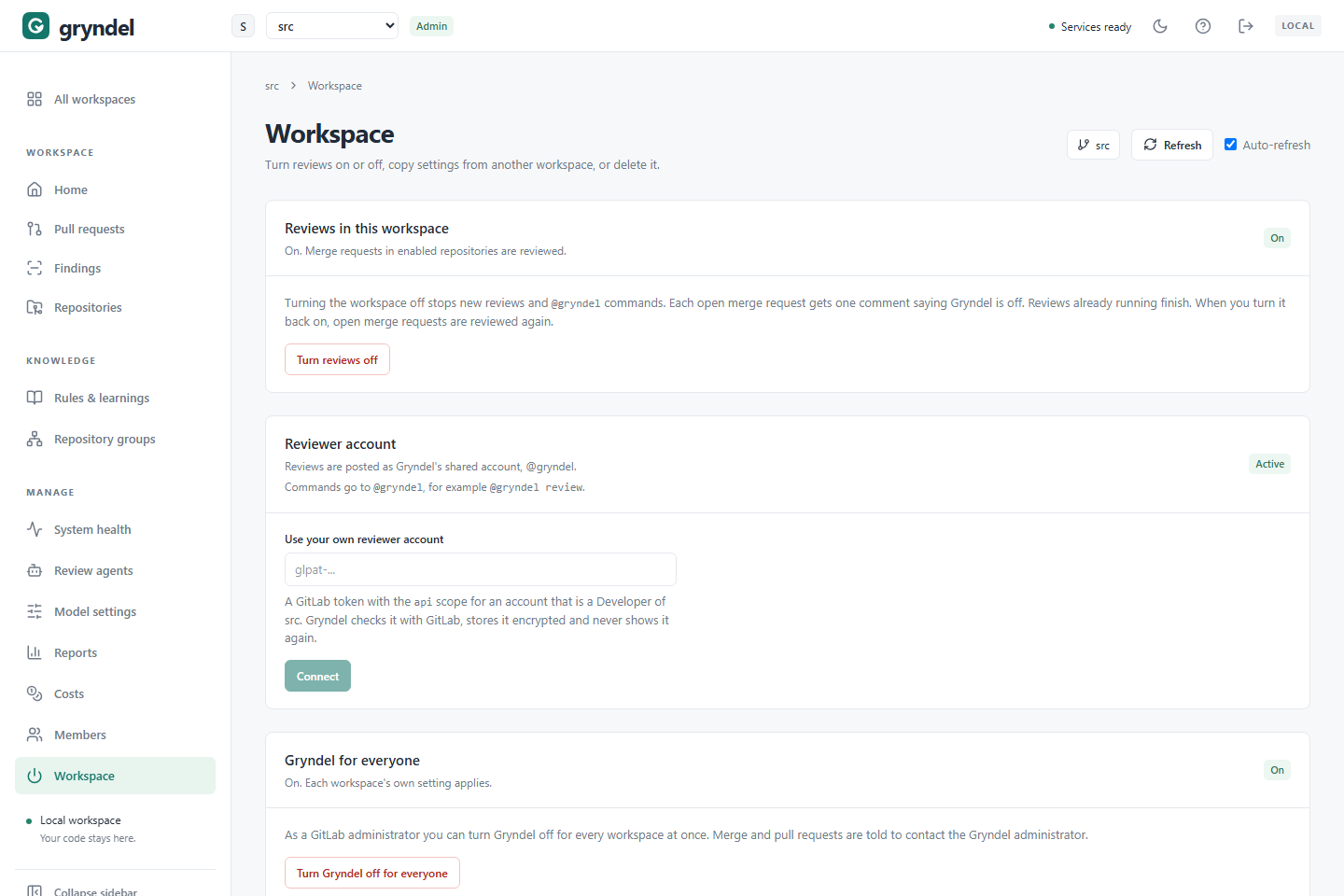
In the sidebar, under MANAGE, click Workspace. Everyone in the workspace can see the page. Only workspace admins see its buttons, and only GitLab administrators can change the two settings for everyone. A GitHub sign-in never counts as a GitLab administrator, even for a GitHub organisation's owners, so someone signed in with GitHub can't change those two settings.
Turn reviews off or on
When to turn reviews off:
- During an incident with your model provider, so merge requests (GitLab) and pull requests (GitHub) aren't held up by failed reviews.
- While you change model providers or review settings and don't want half-configured reviews posted.
- To stop spending on a workspace for a while.
When not to: to pause one repository, turn off its reviews on the
Repositories page instead. To pause one
merge or pull request, comment @gryndel pause on it. Both leave the rest of the workspace running.
| You want to stop | Use | Who can |
|---|---|---|
| One merge or pull request | @gryndel pause on it | Anyone with Developer in the GitLab project, or write access to the GitHub repository |
| One repository | Repositories | Workspace admins (on GitLab, only those who are also Maintainers of the project) |
| The whole workspace | Turn reviews off on this page | Workspace admins |
| Every workspace on the server | Turn Gryndel off for everyone on this page | GitLab administrators |
How
Before you start: you need to be a workspace admin.
- The Reviews in this workspace section shows On or Off.
- Click Turn reviews off. It takes effect at once; there's no confirmation.
What happens while reviews are off
- No new reviews start, for pushes, new merge or pull requests, or
@gryndel review. - Reviews already running finish and post their results. Reviews still waiting in the queue are skipped, and run once reviews are back on.
@gryndelcommands aren't carried out. Gryndel replies to each new one that it's turned off for the workspace and to contact an administrator. Commands that were already waiting are dropped without a reply.- Each open merge or pull request is told once. The first time one is opened or updated while reviews are off, Gryndel comments that it's turned off for the workspace, so it isn't being reviewed. It doesn't comment again on that merge or pull request until the next time reviews are turned off.
- Every page in Gryndel shows a banner, Reviews are turned off in workspace, with a Manage link back here. The section on this page says who turned reviews off, and when.
- What people did with findings isn't read back from the code host for Reports until reviews are back on.
Turn reviews back on
Click Turn reviews on. Gryndel then checks open merge or pull requests in enrolled
repositories shortly afterwards, and reviews any whose latest commit it hasn't reviewed,
including commits pushed while it was off. You don't need to comment @gryndel review on
each one.
Reviewer account (GitLab)
The Reviewer account section shows the GitLab account Gryndel reads code and posts reviews as in this workspace, who connected it, and when its token expires. Everyone sees it; nobody, not even admins, can see the token again.
- Expiring (within 14 days) or Not accepted (GitLab refused the token, for example after it expired or was revoked): a banner on every page says so. While GitLab refuses the token, reviews in this workspace stop; other workspaces carry on.
- To replace the token, an admin makes a new one for the same account (scope
api, made in the workspace's root group, not a subgroup), pastes it under Replace token and clicks Replace token. Gryndel checks it with GitLab first. Reviews use it within half a minute. - A token for a different account asks you to confirm. Earlier review threads stay with the old account, and the next review posts a new summary as the new one.
Gryndel for everyone (GitLab administrators)
When: something affects every workspace, such as a security problem or maintenance on the Gryndel server. Only GitLab administrators see this section, and other people see it only while Gryndel is off. It covers GitHub workspaces too, but only a GitLab administrator signed in with GitLab can change it.
- Click Turn Gryndel off for everyone.
- Confirm with Turn Gryndel off.
It works like turning reviews off, but for every workspace at once, on both code hosts. Merge and pull requests are told to contact the Gryndel administrator, and every page shows Gryndel is turned off for every workspace. Each workspace's own On or Off setting is kept and applies again when you click Turn Gryndel on.
Code storage for everyone (GitLab administrators)
This setting says how much of your code Gryndel keeps in its own database after a review. Everyone can see the current choice. Only GitLab administrators can change it; everyone else sees Only GitLab administrators can change this. It applies to GitLab and GitHub workspaces alike.
| Choice | What Gryndel keeps | Good for |
|---|---|---|
| Don't keep code (the built-in default) | No file contents, diffs, guideline files or webhook bodies. Gryndel fetches the code from the code host at the reviewed commit when the review runs. Afterwards it keeps only where each finding is and its title. The full comments stay on the code host. | Organizations that don't want source code stored outside GitLab or GitHub. |
| Standard | Everything, including code and the evidence behind findings. | Teams who want the full review details in Gryndel, for example to investigate why a finding was posted. |
Choosing: keep Don't keep code unless people need to see the reviewed code in Gryndel's review details. Model costs are the same either way: the model sees the same code.
How:
- Choose a value in Every repository. It's saved at once.
- Optional: tick Enforce: no workspace or repository can change it.
Without Enforce, your choice is only the default: a workspace can choose otherwise in Organization settings, and a repository on its Data tab (see Repositories). With it, the badge shows Enforced and nobody can choose otherwise. Otherwise the badge shows Default.
The setting applies to reviews queued after you change it.
Copy settings from another workspace
When: you're setting up a new workspace and another one already has a working model provider, tuned review agents or useful rules. Copying saves re-entering them, and API keys are copied too, so you don't need to ask for them again.
Before you start: you must be an admin of both workspaces: this one and the one you copy from. Only those workspaces are offered.
How:
- Under Copy from another workspace, choose the source in Copy from.
- Tick what you want under Model providers, Review agents and Rules & learnings. Each group has Select all. Providers that have a key say with API key.
- Optional: tick Replace items this workspace already has with the same ID. Without it, items that already exist here are kept unchanged and skipped.
- Click Copy … selected.
What's copied and what isn't
| Item | What happens |
|---|---|
| Model providers | Copied with their settings, model and API key. This workspace's default provider doesn't change; choose it in Model settings. |
| Review agents | Copied with their prompts, file types and settings. If an agent uses a provider this workspace doesn't have, it's switched to the default provider, and Gryndel warns you. Agent scores aren't copied. |
| Rules, written and learned | Copied with their text, file patterns and severity hint. They keep only the repositories that are enrolled in this workspace. A rule whose repositories are all missing here is copied turned off, with a warning. |
| Not copied | Repository settings, repository groups, organization settings, review history, findings, costs and roles. (Prices you set on a copied provider come with it.) |
Check it worked
Gryndel says how many providers, agents and rules it copied, then lists warnings and anything Skipped, with the reason, for example "one with this ID already exists" or the workspace already having its maximum of agents or rules. Then:
- Open Model settings, check the default provider, and click Test connection on each copied provider.
- On Rules & learnings, turn on any rules that were copied off, and tick the right repositories.
Delete this workspace
When: a team no longer uses Gryndel, or a workspace was created for the wrong GitLab group or GitHub account. When not to: to stop reviews for a while, turn reviews off instead. You keep the history and can turn them back on.
Deleting a workspace removes everything Gryndel stored for it: review history, findings, costs, repository settings, rules, review agents and their scores, model providers and API keys, roles, and stored webhook events. On GitLab, Gryndel also removes its webhooks from the group's projects.
What stays on the code host:
- GitLab: the group, its projects, and comments Gryndel already posted on merge requests. Members lose nothing in GitLab.
- GitHub: the account, its repositories, the App's installation, and comments Gryndel already posted on pull requests. Deleting the workspace doesn't uninstall the App. To stop GitHub sending Gryndel events for the account's repositories, an owner of the account uninstalls the App on GitHub (the account's Settings, then Applications or GitHub Apps, Configure, Uninstall).
Before you start:
- You need to be a workspace admin. On GitLab you also need to be a Maintainer of each enrolled project, because Gryndel removes the webhooks as you. GitHub workspaces have no webhooks of their own to remove, so being an admin is enough.
- The default workspace your Gryndel operator set up can't be deleted. Turn its reviews off instead.
- No review may be running. If one is, turn reviews off first and wait for it to finish.
- If you'll need them later, copy the providers, agents and rules to another workspace first, and use Export CSV on Reports to keep a copy of the findings.
How:
- Under Delete this workspace, type the path shown: the group path (for example
src) or the GitHub account's name (for exampleacme). - Click Delete workspace. On GitLab, you may first be sent to GitLab to allow Gryndel to change webhooks (see Members and roles). If so, allow it and click Delete workspace again.
Afterwards Gryndel switches you to another of your workspaces.
If deleting fails
Nothing is deleted when any of these happen, so it's safe to fix the cause and try again.
| Message | Fix |
|---|---|
| A review is running in this workspace. | Turn reviews off, wait for the review to finish, then delete. |
| You need Maintainer access to project in GitLab to remove its webhook. | GitLab only. Ask a Maintainer of that project to delete the workspace, or to give you Maintainer access. |
| Gryndel could not remove its webhook from project | GitLab only. Retry. If it keeps failing, remove Gryndel's webhook in GitLab under the project's Settings → Webhooks, then retry. |
| This is the default workspace from Gryndel's configuration; it cannot be deleted. | Turn its reviews off instead. |